
The ITS Insider is the Help Desk newsletter which includes timely topics and events. This month’s newsletter is all about Seniors with topics covering backing up Google data, sending post grad email responses, setting up mail forwarding, and saving email and Google Drive files. We also give a preview of what topics are covered in this summer’s Lunch and Learn sessions for faculty and staff. Save the dates!
Saying Farewell to our IT Support Associates
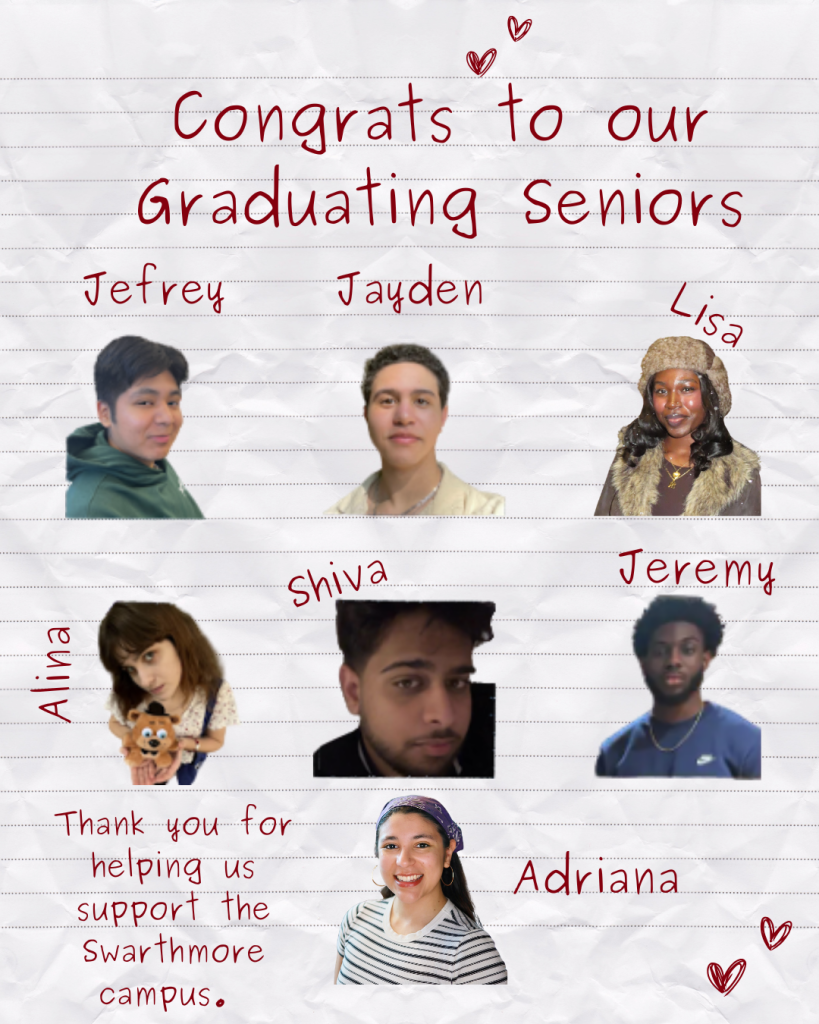
This year, we say goodbye to seven of our beloved IT Support Associates who have helped support the Swarthmore community over the past two to three years. While balancing demanding double majors in fields such as Engineering, Computer Science, and Mathematics, they still dedicated their time and talents to the Help Desk, and for that, we are incredibly grateful. Their hard work, kindness, and commitment have left a lasting impact on our team and the campus community as a whole. We wish them all the best in this exciting next chapter and hope to see them again soon. Here’s a list of all of our graduating seniors:
Adriana Cavazos – Computer Science and Environmental Studies
Lisa Farley – Engineering and Computer Science
Shiva Latchmansingh – Political Science and Economics
Jeremy Amankwah – Engineering and Computer Science
Alina Vykliuk – Computer Science and Mathematics
Jayden Booker – Computer Science
Jefrey Torres Lopez – Engineering and Computer Science
Preparing for graduation: Class of 2026

You did it! You’ve reached the end of the road here at Swarthmore and ITS wants to help make this a smooth transition. Here are a few things you’ll want to complete before you move on to your next chapter.
Featured below are a few tasks to complete before you depart as a student from Swarthmore College; for more details visit our guide on Preparing for Graduation.
Back up Email, Files, and Other Data on College Resources
Swarthmore network accounts for the graduating class are deactivated on June 30th every year so be sure to recover all of your data prior to that date.
Moodle: All posts, discussion board posts, and attachments you added to Moodle will be permanently deleted from Moodle courses and organizations. If you wish to save any materials from Moodle please copy them to a personal storage device or cloud location.
Adobe Creative Cloud: If you have files saved in Adobe Document Cloud, you will also need to download those files before your Swarthmore account is deactivated. You also have the option to transfer cloud files to a personal Adobe account.
Domain of One’s Own: Transfer your website from Domain of One’s Own.
Access payroll records: Download and print available paystubs and W2 forms.
Additional services: Swarthmore maintains many services that may store student data such as RStudio Server and github.swarthmore.edu. In addition, Swarthmore provides access to cloud services such as MATLAB Online, Microsoft OneDrive, and EndNote Web. Download any needed data before graduation.
How To: Send a Postgrad Mass Email
Whether you are moving on to another job or college, retiring or graduating, it’s time to let everyone know where to find you next. Use the steps below to send an email to everyone in your Swarthmore email contacts list:
- Click Compose.
- Add your email address in the TO line.
- Click BCC
- Click BCC again to Select Contacts.
- Click the Select All – or choose a group from the drop down list.
- Click Insert.
NOTE: Gmail has a limit of 500 recipients. If you have more than that in your contact list you’ll need to split them up over multiple days, or cut out some contacts.
How To: Setup Mail Forwarding & Graduation Response
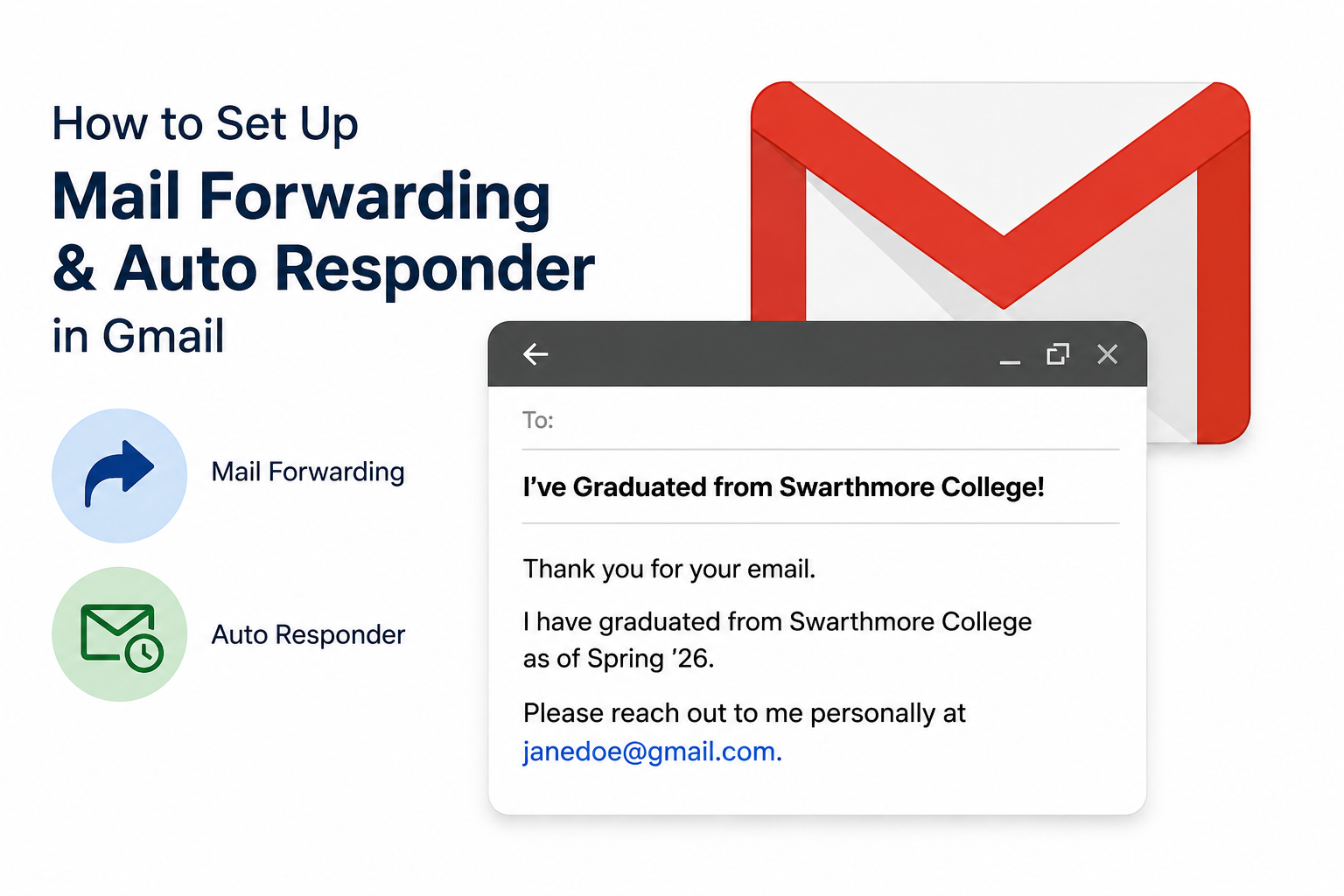
It’s a good idea to let your contacts know that you’ll be losing access to your Swarthmore email account. We suggest doing so in two ways:
- How to setup email forwarding: Pull down the gear icon [Settings] to Settings. Go to Forwarding and POP/IMAP tab > click Add a forwarding address. Enter the address you want to forward mail to > click Next. We recommend keeping the default of “Keep swarthmore.edu’s mails copy in the Inbox“. A confirmation email will be sent to your forwarding email address. You need to accept the forwarding from the confirmation email before it will begin. Please keep in mind that email forwarding from your Swarthmore account will stop when your account is deleted.**
- How to setup automatic email response: Pull down the gear icon [Settings] to Settings. Scroll down in the General section. Under “Vacation responder” there is a check box for “Vacation responder on”. When you check the box you are presented with a text box to compose your message as well as a first day to start sending the auto reply message. Click Save Changes at the bottom of screen to confirm your changes.
**To forward your mail to a new email address, you may need to “Allow Less secure Apps.” Instructions to change that setting are here: Allowing Less Secure Apps in Gmail .
Save your Email and Google Drive files
Google provides two ways to transfer data from Gmail and Google Drive. Using Google Takeout, you can migrate data from your Swarthmore College (@swarthmore.edu) Google account to any other Google account.
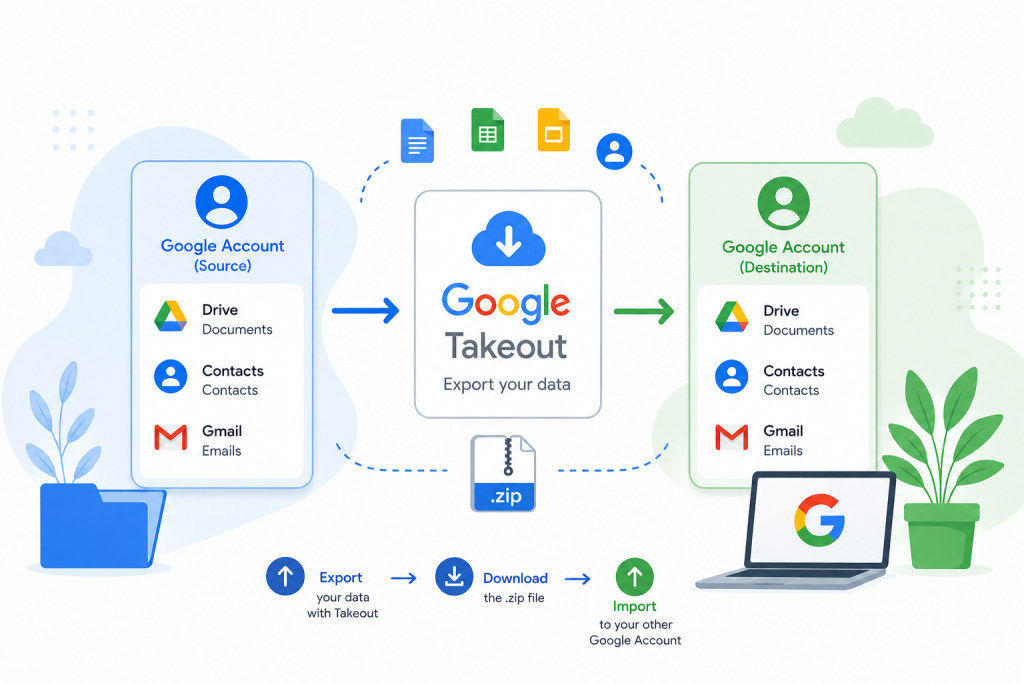
Using Google Takeout, you can export and download your data from the Google products you use, like your email, calendar, and photos. We recommend Google Takeout for items that are not covered by Google Transfer (such as Calendar and Google Photos) or items that are too large to move to a personal Gmail account.
Note: Downloading your data does not delete it from Google’s servers.
Choose which products to include
- Sign into your Swarthmore Google account. Visit the Google Takeout page (takeout.google.com/settings/takeout).
- Choose which Google products to include in your download. To see more details and options for a product, select the down arrow.
- Select Next.
- Choose your archive’s File type. Usually, ZIP is the best format to choose.
Note: If you have Google Play Music data in your account, your content isn’t included when you create an archive.
Choose how your archive is delivered
- For “Delivery method,” select Send download link via email.
- Choose Create archive.
- In the email that arrives, click Download archive.
- To download your data, follow the onscreen instructions.
When your archive is created, you will be emailed a link to its location. Depending on the amount of information in your account, this process could take a few minutes or several hours. Most people get the link to their archive the same day that they request it.
For additional information about the download process and answers to common questions, visit the How to download your Google data – Google Account help page.
Export Google Contacts
To export contacts from your Swarthmore Gmail
- Under the Google Apps menu at the top right, choose Contacts.
- Select Export…
- Choose whether to export all contacts or only one group.
To transfer contacts between Google Accounts, use the Google CSV format. This is the recommended way to back up your Google Contacts.
- Click Export.
- Select a location to save your file, and click Save.
To import contacts to your external Gmail account
- Sign into your personal Gmail account.
- Under the Google Apps menu at the top right, choose Contacts.
- Click Import….
- Click Choose File.
- Select the file you’d like to upload.
- Click Import.
Tech I’m Using – Aaron Smith’s 3D Printed Fidgets
Working in IT we try to stay abreast of the latest and greatest tech. We also just really love gadgets and want to highlight some tech that is being used around the campus community.
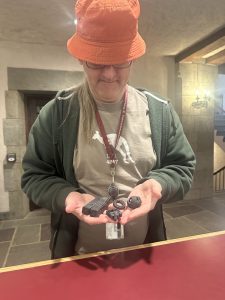
Swarthmore Director of Networking & Telecommunications, Aaron Smith, was so kind to surprise the Help Desk staff with fidgets that he 3D printed using his Prusa Mini. The Prusa Mini+ is a smart, compact, and fast 3D printer featuring a 7″x7″x7″ build volume, mesh bed calibration, replaceable nozzles, network connectivity and more.
Aaron uses Printables.com to find and download 3D printable files to use with his Prusa Mini. Linked below are a few of his favorite fidget files to print.
Did you know that the MakerSpace has 3D Printers available for your 3D Printing needs? Stop by the shop in Whittier Hall during open hours and someone can assist you with your 3D printing needs. For more information visit the Digital Fabrication Makerspace page.
Disclaimer: These spotlights are for informational purposes only. ITS does not endorse or recommend the specific products or services featured. We’re simply sharing what members of our community are using and enjoying.
ITS Lunch & Learn – Summer 2026 Sessions
Faculty and staff, mark your calendars for the upcoming Lunch & Learn sessions. This summer we highlight admin functions for Zoom Call Queues managers, Google Groups and Shared Drive managers, and accessible poster design in Adobe Express. Save the dates!
Grab your lunch and join ITS for the following mini training sessions via Zoom. The sessions are open to all Swarthmore faculty and staff, and will start at 12pm on the following dates. Each session will have 20-25 minutes of training followed by Q&A.
To register or learn more about a session, click on the session link(s) that you are interested in attending.
- June 4, 2026 – Zoom Call Queue Admin
- June 25, 2026 – Google Group Admin and Shared Drive Admin
- July 9, 2026 – Mail Merges and YAMM
- July 23, 2026 – Accessible Poster Design – Adobe Express
We’ll send out a reminder the day before your scheduled session.
Follow us on Instagram

Be sure to follow us on Instagram to stay abreast of the latest news, events, and timely tech related information. We’ll break up the monotany with humorous reels, trivia, and ITSA account takeovers.