
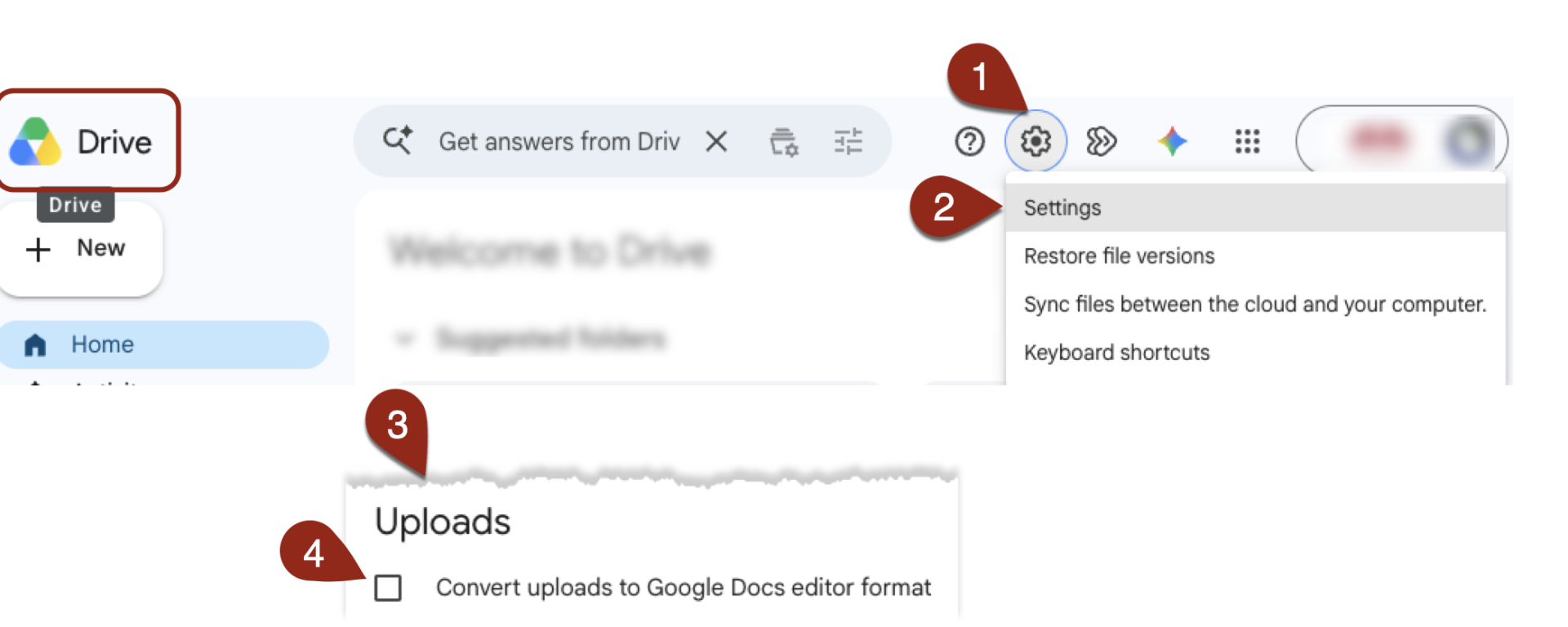
While working on a Microsoft Word document recently, we noticed something unexpected: after uploading the file to Google Drive, it was being converted into a Google Doc.
In this case, we wanted to share the document as a Word file—not as a Google Doc. Keeping a document in its original .docx format can be important when recipients need to download it, edit it in Microsoft Word, or preserve its formatting and accessibility features.
After reviewing our Google Drive settings, we discovered that the following option was selected:
Uploads → Convert uploads to Google Docs editor format
When this setting is enabled, Google Drive may automatically convert uploaded Microsoft Office files into Google Docs, Sheets, or Slides. Fortunately, the setting is easy to change.
Turn Off Automatic Conversion
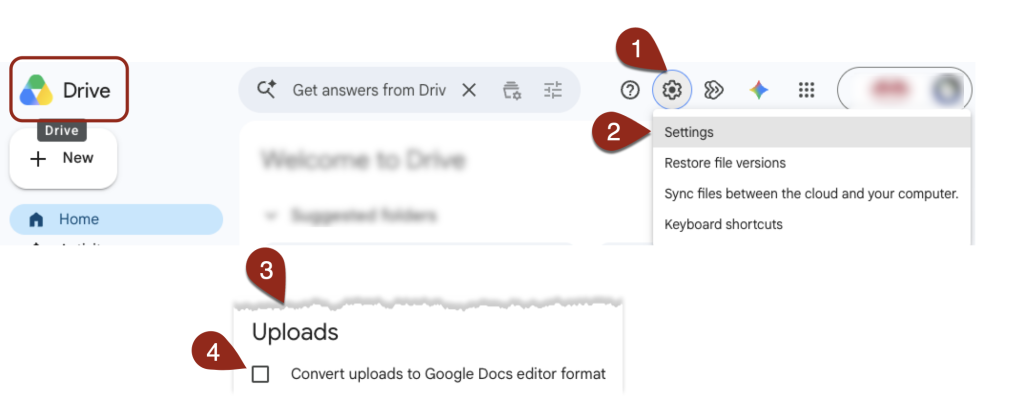
You can change this setting from Google Drive on a computer:
- Select the Settings gear in the upper-right corner.
- Select Settings.
- In the General section, locate Uploads.
- Clear the checkbox next to Convert uploads to Google Docs editor format.
- Select Done.
After you turn off this option, newly uploaded Word, Excel, and PowerPoint files should remain in their original Microsoft Office formats.
This change does not convert existing Google Docs back into Word documents. It applies only to files uploaded after the setting is changed.
Confirm That a File Is Still a Word Document
Google Drive allows you to open and edit Microsoft Word files in a browser without converting them. Because the editing screen closely resembles Google Docs, it may not be immediately clear which type of file you are working with.
Look near the document name in the upper-left corner of the editing window. If you see a blue .DOCX label, the file is still a Microsoft Word document.
If the .docx label is not present and the document is identified as a Google Doc, the file has been converted.
Why the File Format Matters
Google Docs is a useful collaborative tool, but it is not always the best format for every document.
You may need to keep a file in Word format when:
- colleagues or students need to download and edit the document in Microsoft Word;
- a department or external organization requires a
.docxfile; - the document uses complex formatting, templates, styles, or other Word-specific features; or
- accessibility features need to be reviewed and preserved in Microsoft Word.
As a Digital Accessibility Program Manager, I am particularly cautious about moving documents between platforms. A document that is accessible in Word may not retain every structural, formatting, or accessibility feature when it is converted to another format. Conversion does not always create a problem, but important documents should be checked after moving between Word and Google Docs.
For documents that must remain in Word format, the safest approach is to keep the original .docx file and edit it in Microsoft Word whenever possible.
If a File Still Appears to Be Converting
First, return to Google Drive settings and confirm that Convert uploads to Google Docs editor format is no longer selected. Then upload a new copy of the Word document. The setting does not affect files that were previously converted.
If the file opens in a Google Docs-style editing window, look for the blue .DOCX label before assuming that it has been converted. Google Drive can edit an Office file in the browser while retaining its original file format.
You can also test the upload in a private or incognito browser window. This can help determine whether a browser extension or browser setting is affecting Google Drive.