

The ITS Insider is the Help Desk newsletter which includes timely topics and events. This month’s newsletter includes articles on Preparing for graduation, Mac Office 2019 upgrade to 365, How to spot phishing emails, Keeper Password Manager, How to keep cool with a neck fan, and the upcoming ITS Lunch & Learn Sessions on improving computer battery life.
Preparing for graduation: Class of 2026

Congratulations to the Class of 2026, you have reached the end of your academic journey here at Swarthmore and the ITS department is here to make this a smooth transition. This year is particularly meaningful to us because we have not one, not two, but SIX of our student employees graduating. They have been an integral part in the support we provide to the campus community and they will be deeply missed however, we are excited to see what the future holds for them.
Here are a few tasks to complete before you depart as a student from Swarthmore College:
Backup and transfer files from Swarthmore resources:
- Moodle: Save any materials you’ve uploaded to Moodle that you would like to maintain access to.
- Adobe Creative Cloud: Download or transfer any files you have saved under your Swarthmore Adobe account.
- Domain of One’s Own: Transfer your website from Domain of One’s Own.
- Access payroll records: Download and print available paystubs and W2 forms.
- Additional services: Extract any needed data from sources such as RStudio, MatLab, GitHub, and EndNote.
Save Email & Google Drive Files
With Google Takeout you can migrate your Swarthmore Google data to a personal Google account.
Export Google Contacts
Keep in touch with the connections you’ve made over the past four years by exporting your Swarthmore Google cotacts.
For more details visit our guide on Preparing for Graduation.
Microsoft 2019 to Microsoft 365 for Macs
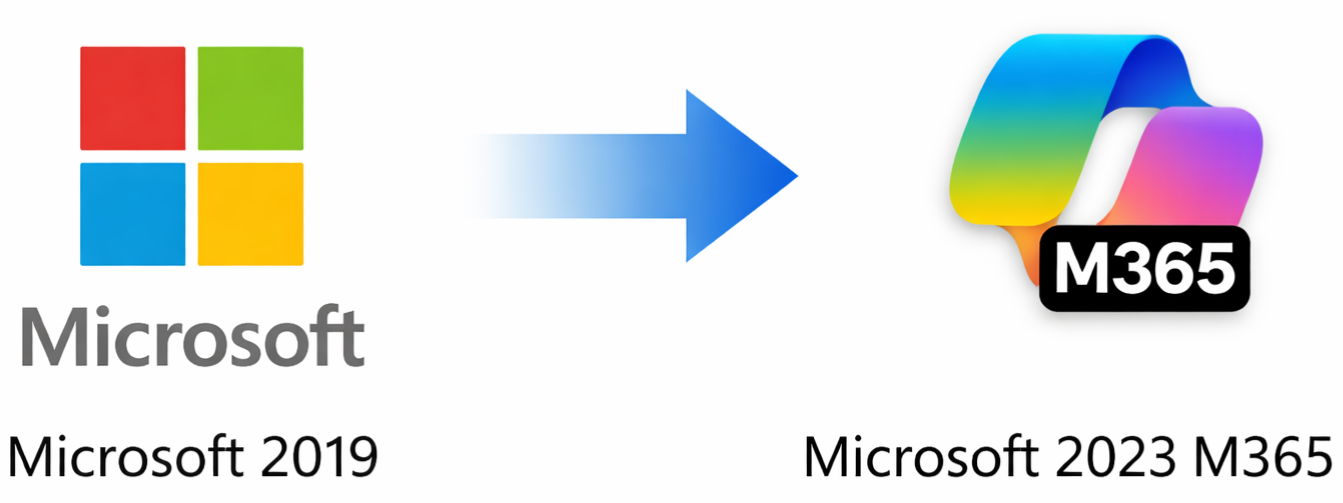
Support for Microsoft 2019 officially ended in October 2025. To ensure that the Swarthmore community continues to receive the latest features, security updates, and performance improvements, Microsoft 365 has now been deployed to all Swarthmore-managed Apple devices. As part of this transition, some users may have seen a prompt asking them to activate Microsoft 365 when opening applications like Word, Excel, or PowerPoint. This is a normal part of the upgrade process.
If your device has not yet been upgraded, you may still be running the older Microsoft 2019 applications. In that case, you can complete the upgrade by following our step-by-step guide on Converting to Microsoft 365. Moving to Microsoft 365 ensures continued access to Microsoft apps and ongoing updates that keep your software secure and up to date.
How To: Spot a Phishing Email
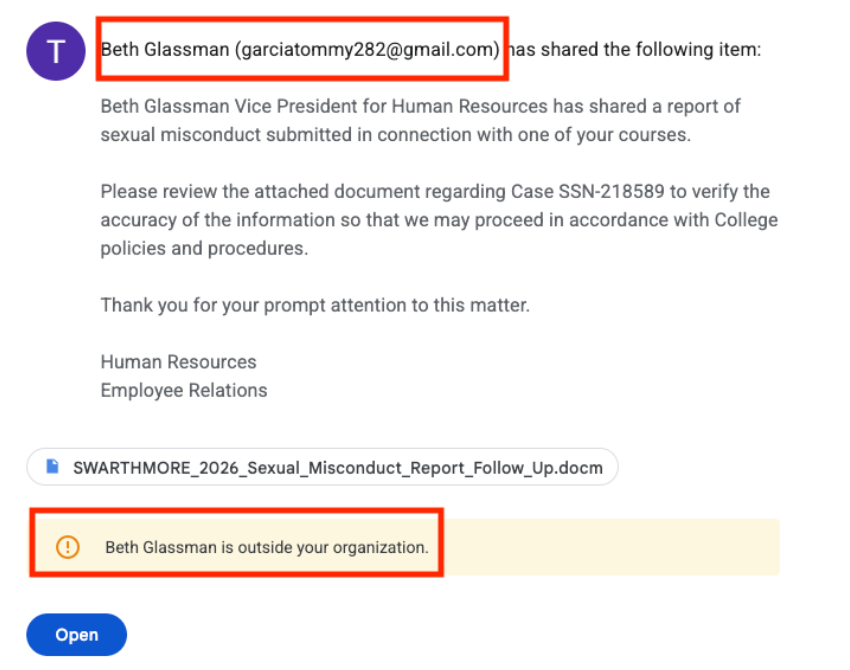
Not every email that looks legitimate actually is. Phishing scams often disguise themselves as messages from trusted contacts in an attempt to trick users into clicking malicious links or sharing sensitive information. Learning to recognize the warning signs is one of the best ways to protect yourself. Here are five things to look for when verifying an email’s legitimacy.
1. Suspicious or Unfamiliar Senders
Check the sender’s email address carefully. Phishing emails often come from addresses that look similar to legitimate ones but contain small differences (extra letters, numbers, or unusual domains).
2. Urgent or Threatening Language
Phishing messages often create a sense of urgency, such as your account will be locked, your password will expire immediately, or you must act right away. These messages are designed to make you react quickly without thinking.
3. Unexpected Links or Attachments
Be cautious of emails that contain links or attachments you weren’t expecting. Hover over links to preview the destination before clicking. If the link looks unfamiliar or doesn’t match the organization it claims to represent, don’t click it.
4. Requests for Personal or Login Information
Legitimate sources will not ask you to provide passwords, verification codes, or sensitive personal information through email. Any message asking for this information should be treated with suspicion, especially if you are redirected to input this information into something like a Google Form.
5. Spelling, Grammar, or Formatting Errors
Many phishing emails contain noticeable spelling mistakes, awkward wording, or unusual formatting. While not all phishing emails have errors, poor writing can be a sign the message is not legitimate.
The next time you receive an email that makes you raise an eyebrow simply take a beat, remember these five warnings, and verify before interacting or responding to the message. If you believe you have received a suspicious email forward the message to our Security team at phishing@swarthmore.edu.
Keeper Security
Keeping your passwords secure is an important part of protecting your personal and institutional accounts. One of the tools available to the Swarthmore community to help manage passwords safely is Keeper Security, a password manager designed to store and protect login credentials in an encrypted digital vault.
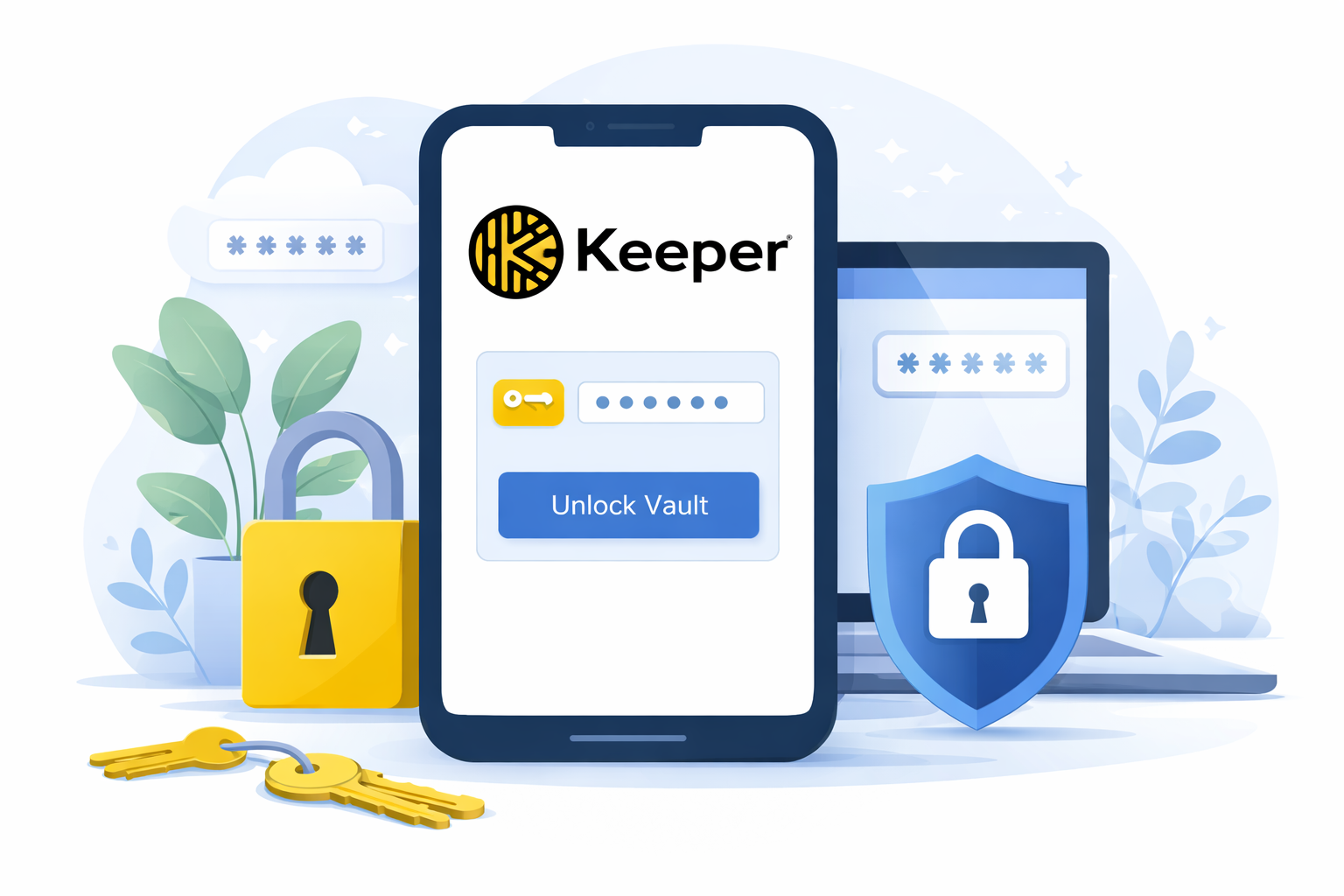
Keeper allows users to securely store passwords, generate strong and unique passwords for websites and applications, and quickly autofill login information when signing into accounts. Instead of remembering dozens of passwords, users only need to remember a single master password to unlock their secure vault. Keeper uses strong encryption to protect stored information, ensuring that your passwords remain private and secure.
Another key benefit of Keeper is its ability to help improve overall password hygiene. Many people reuse passwords across multiple services, which can create a major security risk if one account becomes compromised. Keeper helps users create and store complex, unique passwords for every account, reducing the chances of unauthorized access. The tool can also alert users if stored passwords appear in known data breaches so they can update them quickly.
Keeper is available across multiple devices, including desktop computers, laptops, tablets, and smartphones. This means your secure password vault can be accessed wherever you need it while still maintaining strong encryption and protection. By using Keeper, members of the Swarthmore community can simplify password management while significantly improving their overall digital security.
Keeper is available for Faculty and Staff. For more information about getting Keeper, go to Swarthmore Keeper.
Tech I’m Using – Cherie Breischaft neck fan
Working in IT we try to stay abreast of the latest and greatest tech. We also just really love gadgets and want to highlight some tech that is being used around the campus community.

Cherie Breischaft from the Science Center Coffee Bar loves her rechargeable neck fan, and has them in multiple colors. One charge lasts eight hours. Cherie doesn’t know the model, but says that she found it on Amazon. We did a quick search and found this article on CNN comparing the best neck fans in 2026, tried and tested.
Wearing a neck fan is a hands-free way to enjoy a cooling breeze. They can hang around your neck like headphones or be strung on a lanyard like a pendant. Regardless of how you wear one, it can be a godsend in the summer months.
I wish I had one today, The temp is going up to 90 today!
Have a cool and interesting piece of tech you’d like to see featured? Submit your recommendation using the linked submission form: ITS Tech I’m Using Submission Form
Disclaimer: These spotlights are for informational purposes only. ITS does not endorse or recommend the specific products or services featured. We’re simply sharing what members of our community are using and enjoying.
ITS Lunch & Learn – Tips to improve battery life, Whats new for Computer Replacements, and Tips for working with Google Shared Drive
The upcoming Lunch & Learn sessions highlight tips to improve computer battery life, the faculty-staff computer replacement process and what’s new this summer (see the new devices), and sharing files via Google Shared Drive (what’s the difference).
Grab your lunch and join ITS for the following mini training sessions via Zoom. The sessions are open to all Swarthmore faculty and staff, and will start at 12pm on the following dates. Each session will have 20-25 minutes of training followed by Q&A.
To register or learn more about a session, click on the session link(s) that you are interested in attending.
- April 17th – Tips to improve computer battery life
- April 24th – Computer Replacements: What’s New this Summer
- May 1st – What’s the difference? Tips for working with Google Shared Drive
We’ll send out a reminder the day before your scheduled session.
Follow us on Instagram

Be sure to follow us on Instagram to stay abreast of the latest news, events, and timely tech related information. We’ll break up the monotany with humorous reels, trivia, and ITSA account takeovers.