

The ITS Insider is the Help Desk newsletter which includes timely topics and events. This month’s newsletter includes articles on the do’s and don’ts of safe travel, connecting to eduroam after being away for Spring Break, ways to avoid breaking your MacBook screen, preparing your laptop for hardware repair, the Oura Ring, the upcoming ITS Lunch & Learn Sessions on computer replacements and Keeper password manager, and following us on Instagram.
Safe Travel Practices: The Do’s and Don’ts of Public Networks
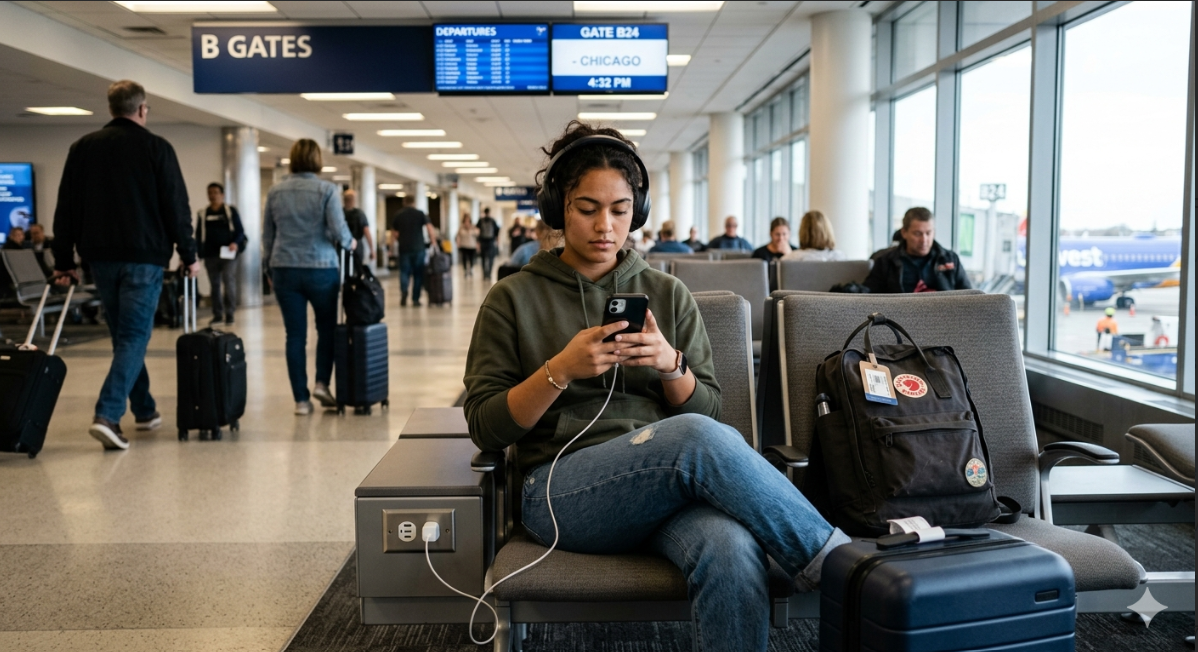
Spring is quickly approaching and with that comes more travel whether for work or leisure. Bad actors are eagerly awaiting this time to penetrate any vulnerabilities in your technical defenses. Here are some practical Do’s and Don’ts to keep you and your data safe when traveling this season.
Don’ts:
- Don’t access sensitive accounts on public Wi-Fi. This includes banking and payroll systems.
- Don’t leave file sharing or AirDrop open to everyone.
- Don’t assume “Free Wi-Fi” is secure.
- Don’t ignore security warnings. If your browser warns you that a site is “not secure” heed the warning.
- Don’t leave your devices unattended.
Do’s:
- Do use a VPN whenever possible. VPN will encrypt your internet connection, making it much harder for others on the network to intercept your data.
- Do verify the network name. Before connecting, confirm the correct network name with staff. Threat actors will often mimic the name of their unsecured Wi-Fi network to that of a known trusted network.
- Do use a two-factor authentication method like the DUO Mobile app.
- Do keep your devices up-to-date. Updates often include patches for vulnerabilities that attackers actively exploit. Install system and security updates before traveling.
- Do use your phone’s hotspot. If you need to access sensitive information, use your phone’s hotspot until you reach a secure Wi-Fi network.
While we can’t guarantee these steps will completely prevent unauthorized access to your devices or data, they will help ensure you travel much more securely.
Can’t connect to eduroam after Spring Break?
Spring break was great! You visited your friend’s college campus, explored a new city, and made the most out of the week. While there, your laptop connected to their school’s eduroam connection quickly and easily. Now, that you’re back at Swarthmore you can’t connect. What happened?
When connecting to other institution’s eduroam it may store the other institutions profiles or certificate which can interfere with your Swarthmore eduroam connection when you return.
We’ve put together a guide of typical troubleshooting steps that should help resolve the issue on MacOS and iOS device. Can’t connect to eduroam after visiting another school
How To: Avoid breaking your MacBook screen (it’s easier than you think)
You wouldn’t believe how often we see a cracked MacBook screen in our office. So, we thought we’d share a list of common small items that can lead to a cracked screen if accidentally closed in your laptop lid.
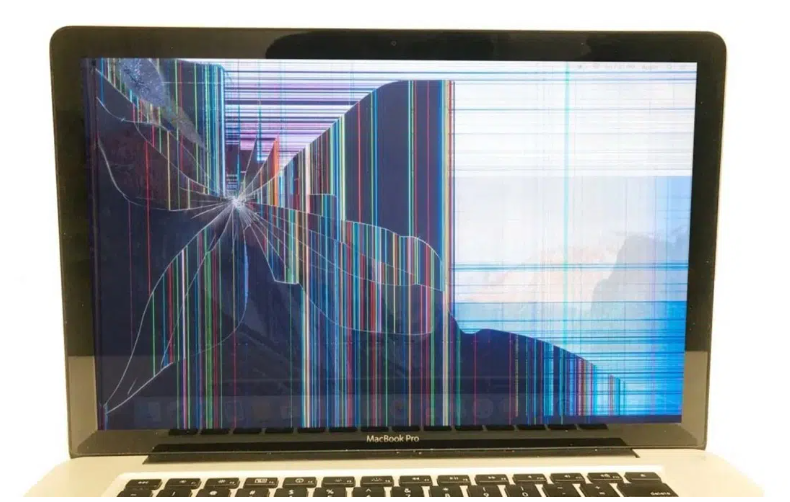
Pens and pencils: One of the most common causes. Even a slim pen across the keyboard will cause pressure points when the lid closes.
Earbuds and AirPods: These can often fall out of your ear when standing quickly to pack up at the end of class. Often, students haven’t realized that they’ve fallen in between their MacBook lid.
Charging cables and dongles: USB-C adapters, flash drives, or cables sitting across the keyboard can easily crack the screen when the lid is shut.
Coins or Keys: Loose change or keys floating around in your bag can easily slide through an opening between your laptop lid.
Paper clips or binder clips: small yet mighty; these will shatter glass instantly.
Other small items to look out for include:
- Hair ties or scrunchies with a metal clasp
- SD Cards/USB drives
- Food crumbs or hard snacks
- Keyboard covers
- Notebooks or folders
To avoid the heartache of a cracked screen, a good habit to form is to give your keyboard a quick look over before closing the lid.
Preparing for Service
Not that kind of service, don’t worry. We’re not planning to ship you off but we do want you to be prepared in case you need to ship off your laptop for repair. Below is a quick guide to follow for both Windows and Mac laptops:
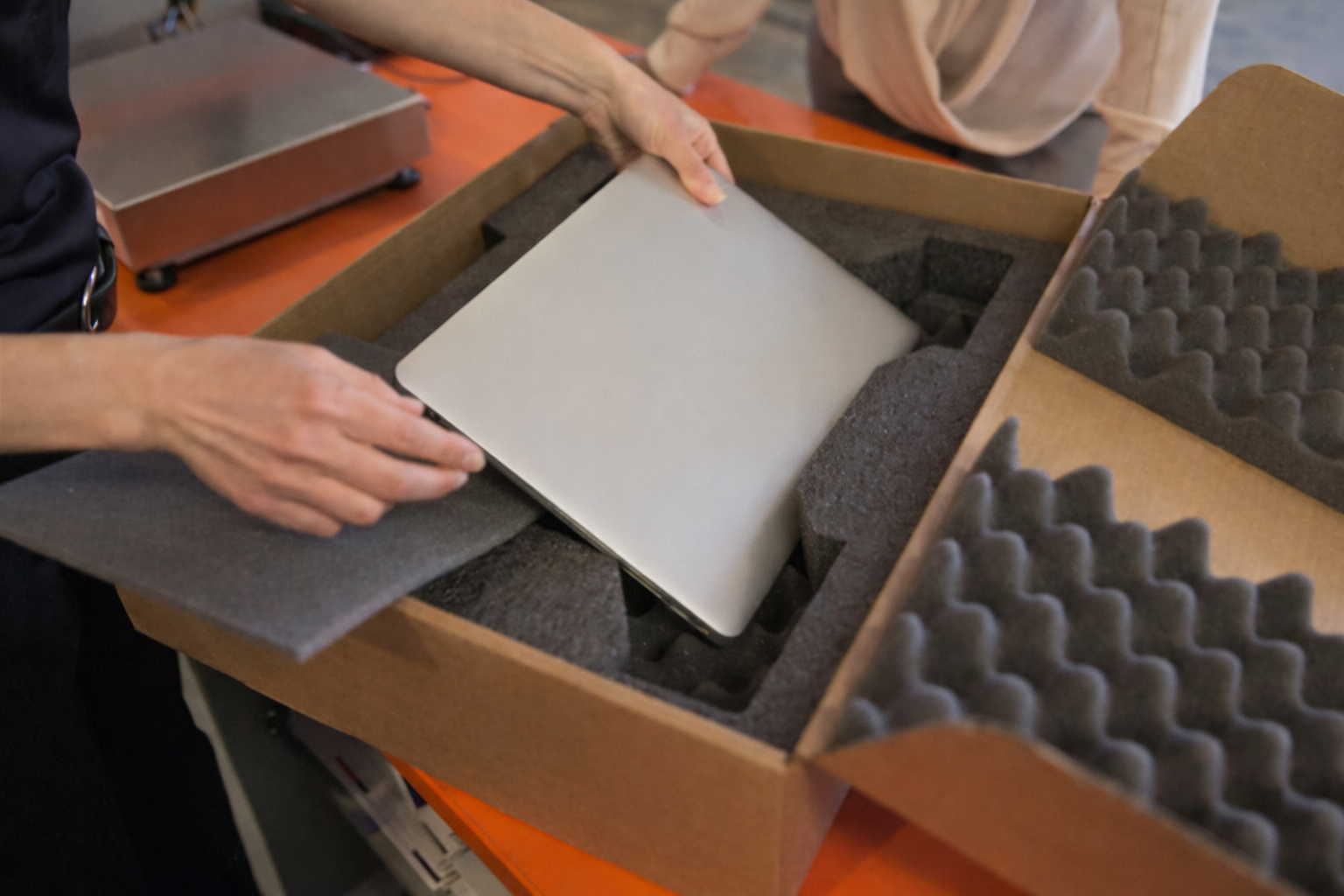
Backup Data: Repairs will often result in your computer being wiped. To avoid losing important files ensure your files are backed up to a cloud service such as Google or One Drive or to an external hard drive.
Sign out of Accounts: The most important account to log out of when sending a device out for repair is the Apple ID. Logging out of Apple ID ensures the repair technicians don’t run into any authentication barriers.
Turn off device tracking: Many repair centers are unable to work on a Mac device if tracking locks are active. Turn Find My off for the device that is being repaired. Go to Turn off Find My and sign out of Apple ID to prep Apple computer or iPad for ITS to learn more and step-by-step directions.
Hold Peripherals: Remove any usb dongles, SD cards, or laptop cases before sending in your laptop for repair.
Document the condition: Take pictures of the laptop’s physical condition before shipping it off. It doesn’t happen often but there have been cases when a device is returned with new damage that it didn’t have before being sent off for repair. These documented photos will help raise a case with the manufacturer to cover the additional repair.
If you have a personal device that is not issued by the college you can often submit a warranty claim directly through the manufacturer’s website. They will connect you with a local repair shop or ship you an empty box. If the device is a Swarthmore college owned device the Help Desk team will gladly coordinate these repairs for you. See our article, Where can I get my device fixed? for more details.
Tech I’m Using – Oura Ring
Working in IT we try to stay abreast of the latest and greatest tech. We also just really love gadgets and want to highlight some tech that is being used around the campus community.

Assistant Softball Coach Justus Perry uses the highly sought after Oura Ring. The Oura Ring is a smart ring that looks like a regular ring but contains sensors that track various aspects of your health and wellness. The ring quietly collects data throughout the day and night and sends insights to the Oura mobile app. The ring tracks a laundry list of metrics such as:
- Sleep stages and sleep quality
- Heart rate and heart rate variability
- Body temperature changes
- Blood oxygen levels
- Daily activity and movement
- Respiratory rate and recovery
- menstrual cycle predictions
Coach Justus appreciates the ring because it lets her know how much sleep she needs to get, prepares her for when she’s getting sick, and when to expect her cycle. She also notes how helpful and accurate it is when tracking workouts as well.
Have a cool and interesting piece of tech you’d like to see featured? Submit your recommendation using the linked submission form: ITS Tech I’m Using Submission Form
Disclaimer: These spotlights are for informational purposes only. ITS does not endorse or recommend the specific products or services featured. We’re simply sharing what members of our community are using and enjoying.
ITS Lunch & Learn – Computer Replacements, Web Pages, and Keeper
The upcoming Lunch & Learn sessions highlight the faculty-staff computer replacement process and what’s new this summer (see the new devices), troubleshooting web pages, and Keeper password manager.
Grab your lunch and join ITS for the following mini training sessions via Zoom. The sessions are open to all Swarthmore faculty and staff, and will start at 12pm on the following dates. Each session will have 20-25 minutes of training followed by Q&A.
To register or learn more about a session, click on the session link(s) that you are interested in attending.
- March 20th – Computer Replacements: What’s New this Summer
- March 27th – Troubleshooting tips for slow web pages and other web issues
- April 10th – Keeper Security: Swarthmore’s Password Management Tool
- April 17th – Tips to improve computer battery life
- April 24th – Computer Replacements: What’s New this Summer
- May 1st – What’s the difference? Tips for working with Google Shared Drive
We’ll send out a reminder the day before your scheduled session.
Follow us on Instagram

Be sure to follow us on Instagram to stay abreast of the latest news, events, and timely tech related information. We’ll break up the monotany with humorous reels, trivia, and ITSA account takeovers.