

The ITS Insider is the Help Desk newsletter which includes timely topics and events. This month’s newsletter includes articles on classroom displays, minimum DUO Mobile app requirements, presentation design tools, using Google Docs to draft emails, cell phone security lanyards, and the spring ITS Lunch & Learn Series.
Screen Mirroring in the Classroom
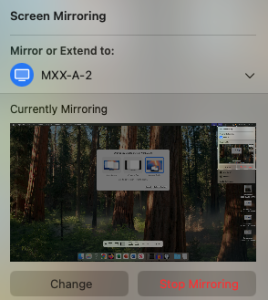
Picture this: it’s 8:29 a.m. You walk into the classroom ready to teach your 8:30 class. You log into the lecture station… and the projector isn’t showing your screen. Instead, you’re greeted with a message that says “Choose Content to Display.” What do you do?
a. Cancel class because the technology isn’t cooperating.
b. Ditch the lecture and spend the hour making TikToks.
c. Call the Classroom & Conferencing Technology team.
d. Turn on Screen Mirroring.
While the Classroom & Conferencing Technology team (CCT) is always happy to help, the quickest solution in this scenario is d. Turn on Screen Mirroring.
To get up and running in seconds, check out our step-by-step guide: Classroom Mac Screen Mirroring & Choose Content Guide for more information.
New Security Requirements for DUO

Keep your DUO Mobile app running and up-to-date. In order to comply with DUO Mobile’s new security mandates it is required that all users be running version 4.85.0 at minimum. To update DUO Mobile visit your phone’s app store (iPhone or Android), search for the DUO Mobile app, and install the latest update.
If your phone does not have version 4.85.0 available this may mean that your phone’s operating system needs to be updated as well. The minimum supported operating systems are currently iOS 16 and Android 11. Find instructions for updating your phone’s operating system here: Android, iOS. Update the Duo Mobile app by March 31st to continue getting Duo authentications.
After March 31st, devices with older Duo Mobile apps (4.84.0 or older) will stop working for Duo. Contact the ITS Help Desk if you are not able to upgrade and do not have any other devices that that will work with Duo.
PowerPoint Designer Tools
Creating a visually engaging presentation can feel overwhelming—especially for those without a background in graphic design. Fortunately, Microsoft 365 offers PowerPoint Designer Tools, a built-in feature that can dramatically simplify the process. This feature automatically generates professional-looking slide layouts based on the content you’ve already added. As text and images are inserted, the tool suggests a variety of design ideas tailored to that content—complete with coordinated fonts, color palettes, layouts, and even relevant imagery.

Instead of manually aligning text boxes, experimenting with themes, or searching for stock photos, users can select from ready-made design options that instantly elevate the look of their presentation. If the initial suggestions don’t quite fit, additional ideas can be generated with a click.
For anyone who struggles with creating visually engaging slides—or simply wants to save time—PowerPoint Designer is a game-changer. It allows presenters to focus on refining their message rather than wrestling with formatting details. For steps on using the PowerPoint Designer view our article: How to Use PowerPoint Designer.
Use Google Docs to Draft and Collaborate on Emails
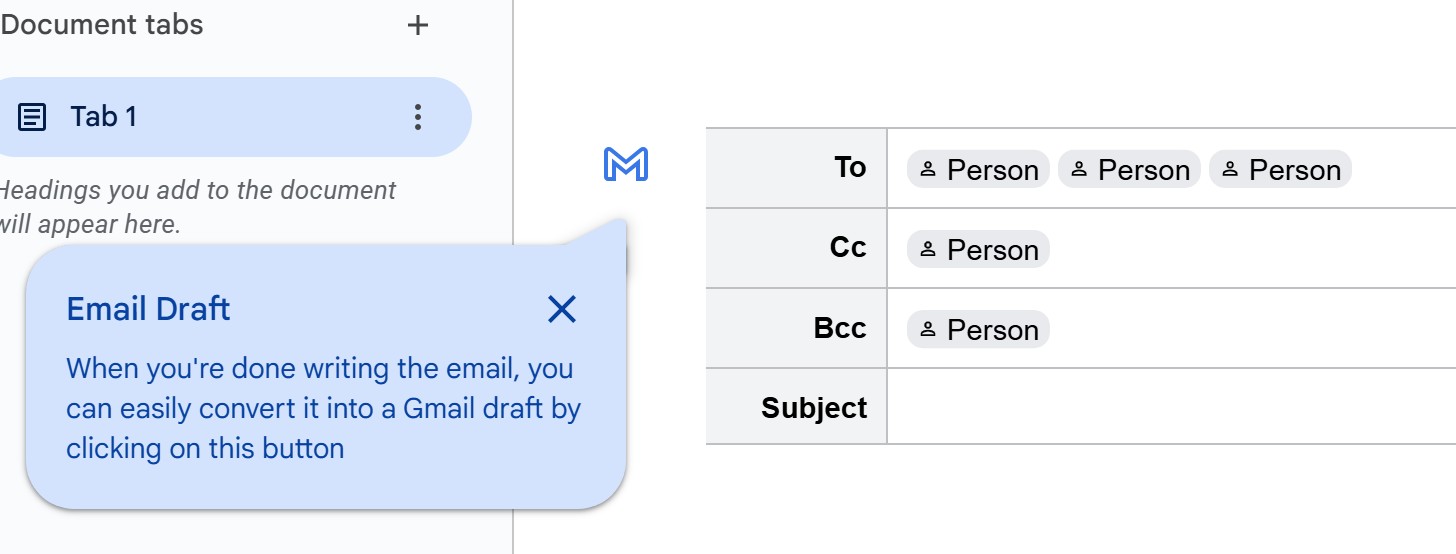
Google has added Templates to Google Docs. You can use Templates for email drafts, meeting notes, calendar event drafts, and more. On a computer, log in to Google Drive and open a new Google Doc. Then select Email Draft. If you don’t see that option, you can find it under the Insert tab > Building Blocks.
Draft and send emails from Google Docs. Great for drafting and previewing before sending. Or, share the doc with others to invite them to collaborate on an email. When you’re finished, click the M icon to convert it into a Gmail draft. In the pop-up Gmail window, you can make additional changes to the email. When it is ready, click send.
The email draft will be sent from the Google account you are logged into.
For more information, go to Use Google Docs to draft emails
Tech I’m Using – Travel Cell Security Lanyard
Working in IT we try to stay abreast of the latest and greatest tech. We also just really love gadgets and want to highlight some tech that is being used around the campus community.
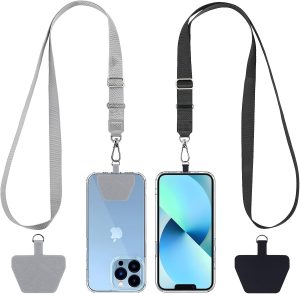
Mark Davis in ITS uses a Cell Phone Security Lanyard when traveling. While Mark uses it as a tool for theft prevention, a cell phone lanyard also protects your phone from drops, ensures it’s always within reach, and offers hands-free convenience. These lanyards were created with thoughtful consideration so as not to block any charging ports or interfere with normal device use. They are available in an array of colors and offer two different lengths for added comfort and versatility.
Disclaimer: These spotlights are for informational purposes only. ITS does not endorse or recommend the specific products or services featured. We’re simply sharing what members of our community are using and enjoying.
ITS Lunch & Learn – Intro to Adobe Express
The next Lunch & Learn features Adobe Express, a cloud-based tool similar to Canva that is free to current faculty, staff, and students. Learn how to use the included templates and other tools to create simple graphics.
Grab your lunch and join ITS for the following mini training sessions via Zoom. The sessions are open to all Swarthmore faculty and staff, and will start at 12pm on the following dates. Each session will have 20-25 minutes of training followed by Q&A.
To register or learn more about a session, click on the session link(s) that you are interested in attending.
- Feb 27th – Intro to Adobe Express: Your go-to for quick, beautiful poster designs
- March 13th – Keyboard shortcuts and other time saving tips
- March 27th – Troubleshooting tips for slow web pages and other web issues
- April 17th – Tips to improve computer battery life
- May 1st – What’s the difference? Tips for working with Google Shared Drive
We’ll send out a reminder the day before your scheduled session.